If you’ve ever walked into a coffee shop, airport, or public park and seen a network labeled “att wifi” or “AT&T Wi-Fi,” you’ve stumbled onto one of the largest commercial wireless networks in the United States. But AT&T Wi-Fi isn’t just about free internet access on the go — it’s a comprehensive ecosystem of home broadband services, Wi-Fi hotspot networks, router configurations, mesh systems, and enterprise-grade connectivity solutions. Whether you’re a homeowner trying to eliminate dead zones, a frequent traveler looking for reliable internet access, or someone just trying to understand what AT&T’s internet service actually offers, this guide breaks it all down in detail. We’ll cover everything from AT&T Wi-Fi plans and equipment to troubleshooting tips and expert-level optimization strategies, so you can get the most out of your connection.
What Is AT&T Wi-Fi?
AT&T Wi-Fi refers to a family of wireless internet services provided by AT&T, one of the oldest and largest telecommunications companies in America. At its core, AT&T Wi-Fi encompasses residential fiber and DSL internet delivered through Wi-Fi routers, a nationwide network of public hotspot locations, and enterprise-level wireless solutions for businesses. When most people refer to “att wifi,” they’re talking about one of three things:
- AT&T Internet at home — fiber-optic or DSL-based broadband service distributed via a Wi-Fi router or mesh system.
- AT&T Wi-Fi Hotspots — thousands of public wireless access points located in cafes, hotels, and urban centers across the country.
- AT&T Wi-Fi extenders and equipment — hardware devices designed to boost, extend, or improve wireless coverage within a home or office.
Understanding which category applies to your situation is the first step toward making smart decisions about your connectivity. AT&T’s residential internet service is available to millions of households, particularly in areas where fiber-optic infrastructure has been deployed. Their hotspot network, on the other hand, serves anyone with an AT&T account or a compatible device, offering convenient internet access outside the home.
AT&T Wi-Fi Plans and Pricing
AT&T offers several tiers of home internet service, and the specifics vary by region and availability. The most common AT&T Wi-Fi plans fall into two broad categories: fiber-optic internet and DSL internet. Fiber plans are significantly faster and more reliable, while DSL serves as a more affordable option in areas without fiber infrastructure.
Fiber Internet Plans
AT&T’s fiber-optic internet plans are among the most competitive in the market. Typical plan tiers include:
- AT&T Internet 300 — Download speeds up to 300 Mbps, suitable for streaming, video conferencing, and general household use. This plan often starts around $55 per month.
- AT&T Internet 500 — Download speeds up to 500 Mbps, ideal for households with multiple connected devices, heavy streaming, and remote work setups.
- AT&T Fiber 1000 — Symmetrical gigabit speeds (1000 Mbps download and upload), perfect for power users, gamers, and smart homes with dozens of devices.
Many of these plans include a Wi-Fi gateway (router) at no additional cost, and AT&T often promotes bundle discounts when you pair internet with AT&T TV, phone, or wireless services.
DSL Internet Plans
For households not served by fiber, AT&T DSL offers more modest speeds, typically ranging from 5 Mbps to 100 Mbps. While DSL doesn’t match fiber in performance, it provides an affordable entry point for basic internet needs like email, browsing, and standard-definition streaming.
AT&T Wi-Fi Routers and Equipment
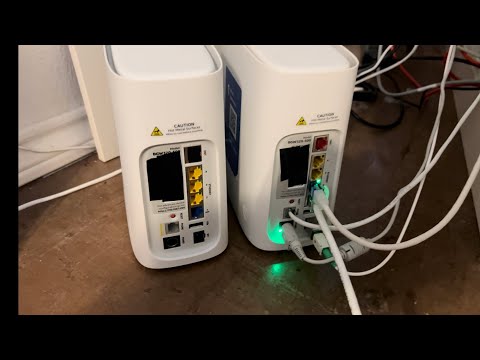
The quality of your wireless experience depends heavily on the router or gateway you’re using. AT&T typically provides customers with a Wi-Fi gateway — a device that combines a modem and router into one unit. The most common AT&T Wi-Fi gateway models include the BGW210, BGW320, and the 2Wire series, depending on your region and service type.
For those who want more control over their network, AT&T also supports the use of third-party routers. You can connect your own compatible router to an ATONT (AT&T On Network Terminal) device, which gives you access to AT&T’s fiber connection while letting you manage your own Wi-Fi settings, security protocols, and device prioritization. This is a popular move among advanced users who want to deploy mesh systems like Google Nest WiFi, Eero, or Netgear Orbi.
Key features to look for in an AT&T-compatible router include:
- Dual-band or tri-band frequency support (2.4 GHz and 5 GHz)
- Gigabit Ethernet ports
- Quality of Service (QoS) settings for traffic prioritization
- Wi-Fi 6 or Wi-Fi 6E compatibility for future-proof performance
- Built-in parental controls and security features
Setting Up AT&T Wi-Fi at Home
Setting up AT&T Wi-Fi in your home is a straightforward process, but doing it right can make a significant difference in performance. Here’s a step-by-step guide for a solid foundation:
- Placement matters. Position your gateway or router in a central location in your home. Avoid placing it in enclosed cabinets, basements, or near thick walls and metal appliances.
- Connect your equipment. Plug the AT&T ONT or modem into your wall’s internet port, then connect it to your router via Ethernet cable. If you’re using an AT&T-provided gateway, it handles both functions.
- Configure your network name and password. Log into the router’s admin panel (usually at 10.0.0.1 or 192.168.1.254) and set a unique SSID and a strong WPA3 or WPA2 password.
- Update firmware. Check for and install any available firmware updates to ensure optimal security and performance.
- Test your connection. Use a speed test tool like Speedtest.net to verify you’re getting speeds close to what your plan promises.
AT&T Wi-Fi Hotspots: How They Work
One of AT&T’s most valuable features for existing customers is its extensive network of AT&T Wi-Fi hotspots. These are public wireless access points located in high-traffic areas such as restaurants, hotels, transportation hubs, and outdoor urban spaces. If you have an AT&T internet or wireless account, you can access these hotspots automatically or through the AT&T Wi-Fi app.
The AT&T Wi-Fi hotspot network uses a technology called Passpoint (also known as Hotspot 2.0), which allows your device to seamlessly connect to participating hotspots without needing to manually select a network or enter a password. This makes the experience similar to connecting to your home Wi-Fi — you simply walk into a hotspot zone, and your device authenticates and connects automatically.
For customers on certain AT&T unlimited wireless plans, access to the nationwide hotspot network is included at no extra charge. This can be a real lifesaver for road trips, business travel, or situations where your cellular data signal is weak but a hotspot is nearby.
AT&T Wi-Fi Extenders and Boosters
Even the best AT&T Wi-Fi setup can suffer from dead zones — areas in your home where the signal is too weak to provide reliable internet. This is where Wi-Fi extenders, repeaters, and mesh systems come in. AT&T sells and supports several options:
- AT&T Wi-Fi Extender — A plug-in device that boosts the existing signal from your gateway. It’s easy to set up and affordable, though performance can degrade compared to a direct connection.
- AT&T Mesh Wi-Fi System — A more robust solution that uses multiple nodes spread throughout your home to create seamless, whole-home coverage. Mesh systems are the recommended approach for larger homes or those with challenging layouts.
- Powerline adapters — Devices that use your home’s electrical wiring to transmit internet signals to rooms far from the router.
For most users experiencing coverage issues, upgrading to a mesh Wi-Fi system delivers the best results. It eliminates dead zones without the speed loss associated with traditional extenders, and it provides a unified network name that lets your devices roam freely between nodes.
Troubleshooting Common AT&T Wi-Fi Issues

Even with a great setup, you’ll occasionally run into connectivity problems. Here are the most frequently reported AT&T Wi-Fi issues and their solutions:
Slow Speeds
Start by running a speed test to confirm whether you’re actually getting what you’re paying for. If speeds are significantly lower than your plan, try the following:
- Restart your gateway or router.
- Check for bandwidth-hogging devices or applications.
- Switch to the 5 GHz band if you’re close to the router.
- Reduce interference from neighboring networks by changing your Wi-Fi channel.
Frequent Disconnections
Intermittent drops are often caused by outdated firmware, overheating equipment, or loose cable connections. Make sure all coaxial and Ethernet cables are firmly seated, and check the AT&T service status page to see if there’s an outage in your area. If the problem persists, contacting AT&T customer support for a remote diagnostic check or a technician visit is usually the next step.
Can’t Connect to AT&T Wi-Fi Hotspot
Ensure your device has the latest operating system updates and that Wi-Fi is enabled. You may also need to download the AT&T Wi-Fi app to manage hotspot authentication. Sometimes, toggling airplane mode on and off forces your device to re-discover available networks.
AT&T Wi-Fi vs. Other Internet Providers: A Comparison
To understand how AT&T stacks up against the competition, consider the following comparison:
| Feature | AT&T Fiber | Comcast Xfinity | Verizon Fios |
| Max Download Speed | 5 Gbps | 1.2 Gbps | 940 Mbps |
| Symmetrical Upload | Yes (fiber plans) | No | Yes (fios plans) |
| Public Hotspot Network | Extensive | Moderate | Limited |
| Contract Required | Often no | Varies | Often no |
| Price Competitiveness | High | Moderate | High |
AT&T Fiber stands out for its symmetrical upload speeds, extensive hotspot network, and competitive pricing — especially in markets where it’s available. However, availability remains the biggest limitation, as AT&T’s fiber footprint is still growing and isn’t as widespread as Comcast’s cable network.
Expert Tips for Optimizing Your AT&T Wi-Fi Network
Getting the most out of your AT&T Wi-Fi goes beyond just plugging in a router. Here are professional-level recommendations:
- Use a wired connection for critical devices. Gaming consoles, desktop PCs, and smart TVs perform best on Ethernet. This frees up wireless bandwidth for mobile devices.
- Separate your bands strategically. Connect IoT devices (smart plugs, cameras, sensors) to the 2.4 GHz band, and reserve 5 GHz for high-bandwidth tasks like streaming and video calls.
- Enable QoS settings. Prioritize video conferencing or gaming traffic so they aren’t disrupted by background downloads or streaming from other devices.
- Schedule reboots. Set your gateway to restart automatically during off-peak hours to clear memory and refresh connections.
- Monitor connected devices. Regularly audit your network for unknown devices and remove them immediately.
- Consider a VPN. For privacy-conscious users, running a VPN on your router encrypts all traffic across your entire AT&T Wi-Fi network.
Frequently Asked Questions About AT&T Wi-Fi
What does “att wifi” mean exactly?
“Att wifi” typically refers to any AT&T-provided wireless internet service, whether it’s your home broadband connection delivered through a Wi-Fi router, or access to AT&T’s public hotspot network. It’s commonly searched by users looking for setup instructions, plan details, or troubleshooting help for their AT&T internet service.
How can I find AT&T Wi-Fi hotspots near me?
You can locate AT&T Wi-Fi hotspots using the AT&T Wi-Fi app, available for both iOS and Android. Simply open the app, and it will display nearby hotspots on a map. You can also check AT&T’s official website for a hotspot locator tool. If you’re an AT&T internet or wireless customer, access is typically included at no extra charge.
Can I use my own router with AT&T internet?
Yes. If you have AT&T fiber internet, you can use your own compatible router by connecting it to the AT&T ONT (Optical Network Terminal). This gives you full control over your Wi-Fi settings. However, you’ll forfeit AT&T’s technical support for troubleshooting issues that arise on your third-party equipment.
Is AT&T Wi-Fi free for existing customers?
AT&T internet customers receive a Wi-Fi gateway as part of their service, so the home Wi-Fi equipment is effectively included in your plan. Access to AT&T’s public hotspot network is also free for customers on qualifying internet or unlimited wireless plans. However, standalone Wi-Fi-only plans from AT&T are not currently widely available to consumers.
What’s the difference between AT&T Wi-Fi and AT&T Internet?
AT&T Internet refers to the broadband service itself — the data connection delivered to your home via fiber, DSL, or fixed wireless. AT&T Wi-Fi refers to the wireless local area network that distributes that internet signal throughout your home or to public hotspot locations. Think of AT&T Internet as the highway and AT&T Wi-Fi as the on-ramps that let your devices access it.
How do I improve my AT&T Wi-Fi signal in a large home?
The most effective solution for large homes is a mesh Wi-Fi system. Place one node near your AT&T gateway and distribute additional nodes throughout your home. This creates seamless coverage without the speed degradation you’d experience with a traditional Wi-Fi extender. Alternatively, powerline adapters can carry the signal through your home’s electrical wiring to hard-to-reach rooms.
Final Thoughts on AT&T Wi-Fi
AT&T Wi-Fi remains a top choice for millions of American households and travelers, thanks to its combination of high-speed fiber internet, a robust public hotspot network, and flexible equipment options. Whether you’re setting up your first home network, extending coverage to every corner of a spacious property, or simply looking for reliable internet while on the road, understanding how AT&T’s wireless ecosystem works puts you in a much stronger position. By following the setup guidelines, optimization tips, and troubleshooting strategies outlined in this guide, you’ll be well-equipped to get the absolute best performance from your AT&T Wi-Fi connection. Stay informed, stay connected, and make every megabit count.