


Whether you are a casual user trying to open a downloaded file or a professional managing project assets, knowing how to change file type in Windows 11 is an essential digital skill that can save you hours of frustration. File extensions dictate how your operating system interprets and opens documents, and when the wrong extension is attached to a file, even the most perfectly formatted content becomes inaccessible. Windows 11 offers several straightforward methods — from simple renaming tricks in File Explorer to advanced PowerShell commands — that let you modify file extensions quickly and safely. In this comprehensive guide, we will walk you through every practical approach, highlight common pitfalls, and provide expert recommendations so you can confidently manage file formats on your PC without risking data loss.
Understanding File Extensions and File Types in Windows 11
Before diving into the methods, it helps to understand what a file extension actually is and why Windows 11 treats it the way it does. A file extension is the suffix that follows the period at the end of a filename, such as .txt, .pdf, .jpg, or .docx. This small string of characters tells the operating system which application to use when opening the file and how to interpret the data inside it. When you change a file extension, you are essentially relabeling the file, which signals to Windows 11 that a different program or format should handle it.
By default, Windows 11 hides known file extensions to reduce visual clutter. This behavior is helpful for most users, but it becomes a significant obstacle when you need to change a file type manually. The first step in any file conversion process is making sure you can see extensions in the first place. You can do this by opening File Explorer, clicking the View menu on the ribbon, and toggling the Show option, then selecting File name extensions. Once this setting is enabled, you will see extensions displayed next to every filename, giving you full control over how files are categorized and opened.
How to Change a File Type in Windows 11 Using File Explorer
The most accessible method for changing file extensions is directly through File Explorer. This approach works well for renaming extensions on individual files and is the go-to solution for beginners and intermediate users alike.
Follow these steps to change a file extension using File Explorer:
- Open File Explorer and navigate to the folder containing the file you want to modify.
- Ensure that File name extensions is enabled under the View tab.
- Right-click the target file and select Rename, or simply click the filename once and press F2.
- Edit the extension at the end of the filename to match the desired format (for example, change .txt to .csv).
- Windows 11 will display a warning dialog stating that the file may become unusable if you change the extension. Click Yes to confirm.
- Verify the file opens correctly with the new format by double-clicking it.
While this method is simple and effective, it is important to understand what it actually does. Renaming an extension does not convert the internal structure of the file — it merely changes the label Windows uses to determine which program should open it. A text file renamed to a CSV will still contain plain text, but the comma-delimited structure may not align with what spreadsheet applications expect. This distinction matters, and it is why more thorough conversion methods are sometimes necessary.
Changing File Extensions Using the Command Prompt
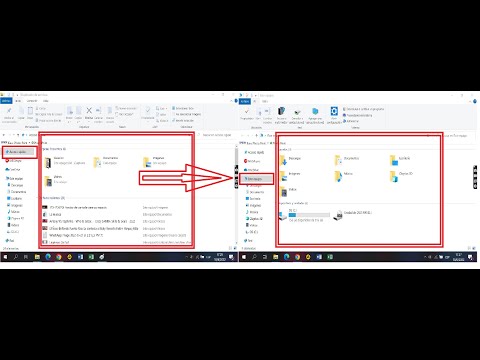
For users who prefer command-line tools or need to rename multiple files at once, the Command Prompt provides a powerful alternative. Using the ren (rename) command, you can batch-process files and change their extensions efficiently without manually renaming each one.
Here is how to change file types via Command Prompt in Windows 11:
- Open the Start menu, type cmd, and launch Command Prompt as Administrator.
- Navigate to the target directory using the cd command (for example, cd C:UsersYourNameDocuments).
- Use the rename command with a wildcard to change all files of one type to another. For example:

ren *.txt *.csv
This single command will rename every .txt file in the current directory to a .csv extension. You can substitute any valid extension pair to suit your needs. This technique is especially useful when dealing with large datasets or when you need to prepare multiple files for import into another application.
Using PowerShell to Rename or Convert File Types
PowerShell is the modern scripting environment built into Windows 11, and it offers even greater flexibility than Command Prompt for file management tasks. Whether you want to rename a single file or apply transformations across entire folders, PowerShell can handle the job with precision.
To change a file extension using PowerShell:
- Right-click the Start button and select Windows Terminal (Admin) or PowerShell (Admin).
- Navigate to the folder containing the files using Set-Location or the shorthand cd.
- Use the following command to rename files:
Get-ChildItem *.txt | Rename-Item -NewName { $_.Name -replace ‘.txt,’.csv’ }
This PowerShell pipeline finds every .txt file in the directory and replaces the extension with .csv. The beauty of this approach is that you can customize the regex pattern to handle complex renaming scenarios, such as changing only specific files or appending additional identifiers to filenames during the process.
Common File Format Conversions and When to Use Them
Not all file type changes are created equal. Some conversions are purely cosmetic (renaming an extension), while others require actual re-encoding or restructuring of the file data. Understanding the difference helps you choose the right approach for your needs.
Cosmetic Extension Changes vs. True Format Conversions
When you simply rename an extension without altering the underlying data, you are performing a cosmetic change. This works when the file’s internal structure is compatible with the target format. For example, renaming a file from .html to .txt preserves the text content, and most text editors can open it without issues. However, renaming a .png image to .jpg does not actually convert the image compression method — the file will likely fail to open in image viewers that strictly validate headers.
True format conversions involve using software or online tools to re-encode the file data into a new structure. Tools like Adobe Acrobat for PDF conversions, HandBrake for video formats, and Audacity for audio files perform genuine transformations that ensure compatibility across platforms and applications.
Comparison of Methods for Changing File Types in Windows 11
| Method | Best For | Difficulty Level | Converts Data? |
| File Explorer Rename | Single files, quick label changes | Beginner | No (cosmetic only) |
| Command Prompt Batch Rename | Multiple files, bulk extension changes | Intermediate | No (cosmetic only) |
| PowerShell Scripting | Complex renaming, automation | Advanced | No (cosmetic only) |
| Dedicated Conversion Software | PDF, audio, video, image formats | Beginner to Intermediate | Yes (true conversion) |
| Online Converters | One-off conversions, no software install | Beginner | Yes (true conversion) |
Expert Tips and Best Practices for Changing File Types
Changing file extensions and converting formats on Windows 11 can lead to data loss if you are not careful. Here are expert recommendations to keep your files safe and functional:

- Always back up original files before renaming or converting. Keep the originals in a separate folder until you confirm the new version works correctly.
- Use dedicated conversion tools when you need true format changes rather than simple renaming. This ensures the internal data structure is properly translated.
- Verify the new file extension by checking the file properties in Windows 11. Right-click the file, select Properties, and review the Type of file field under the General tab.
- Be cautious with system files. Changing the extension of configuration or system files (such as .dll, .sys, or .reg) can destabilize your operating system or cause applications to malfunction.
- Use the correct case for extensions. While Windows 11 is generally case-insensitive, some applications and servers expect lowercase or uppercase extensions. Sticking to lowercase (.pdf rather than .PDF) avoids potential cross-platform issues.
- Keep file name extensions visible in File Explorer at all times if you frequently work with different formats. This prevents accidental double extensions and keeps your file management organized.
Frequently Asked Questions
Can changing a file extension damage the file?
Renaming only the extension without converting the internal data does not damage the file’s content, but it may prevent the file from opening correctly in applications that expect a specific format. To avoid issues, always keep a backup of the original file and test the renamed file immediately after making the change.
What is the easiest way to change file type in Windows 11?
The easiest method is to enable file name extensions in File Explorer by going to View > Show > File name extensions, then right-click the file and select Rename. This works for single files and requires no additional software or technical knowledge.
How do I convert a file to a different format without losing data?
To truly convert a file while preserving data integrity, use dedicated conversion software or trusted online tools. For example, use Adobe Acrobat to convert documents to PDF, HandBrake for video transcoding, or Format Factory for batch media conversions. These tools re-encode the data into the target format, ensuring compatibility without corruption.
Why does Windows 11 hide file extensions by default?
Microsoft hides known file extensions in Windows 11 to reduce visual clutter and prevent accidental renaming by less experienced users. However, advanced users and professionals often prefer to keep extensions visible at all times for easier file management and type modification. You can toggle this setting anytime in the File Explorer View menu.
Can I change multiple file extensions at once in Windows 11?
Yes. You can use Command Prompt with the ren command and wildcards, or PowerShell with the Get-ChildItem and Rename-Item cmdlets, to batch-change extensions across an entire folder. Both methods are native to Windows 11 and do not require third-party software.
Is it safe to use online file conversion tools?
Most reputable online converters are safe for everyday use, but exercise caution with sensitive or confidential documents. Choose well-known services with clear privacy policies, and avoid uploading files containing personal or proprietary information to unfamiliar websites. For regular or bulk conversions, installing trusted desktop software is a safer and more efficient long-term solution.
Conclusion
Mastering how to change file type in Windows 11 empowers you to take full control of your digital workspace. Whether you are using the simple File Explorer rename method for a quick extension swap, leveraging Command Prompt for bulk operations, or employing PowerShell for automated workflows, Windows 11 gives you the flexibility to handle virtually any file format scenario. Remember that renaming an extension is not the same as converting data, and for true format changes, dedicated software remains the safest and most reliable option. By following the tips and best practices outlined in this guide, you can manage your files with confidence, avoid common pitfalls, and keep your documents accessible across all your applications and devices.