


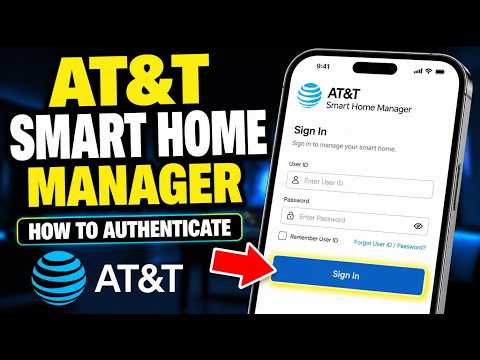
If you have an AT&T internet connection, you already have a powerful gateway sitting in your home, but are you truly harnessing its full potential? The AT&T Smart Home Manager app is the definitive tool that bridges the gap between your internet service provider and your daily digital life. More than just a simple dashboard, this application transforms your AT&T gateway into a command center for your entire home network. Whether you are troubleshooting a spotty connection in the bedroom or setting up a secure guest network for holiday visitors, understanding how to navigate the AT&T Smart Home Manager app is essential for modern connectivity. This guide will walk you through everything from basic setup to advanced network configurations, ensuring you get the absolute maximum performance out of your AT&T internet service.
What is the AT&T Smart Home Manager App?
The AT&T Smart Home Manager app is a mobile application designed specifically for AT&T gateways and routers, including the popular BGW320 and BGW210 models. It serves as the official interface for managing your home network, offering visibility and control that goes far beyond the basic admin panels found on standard web interfaces. When you download the AT&T Smart Home Manager app, you gain immediate access to real-time data about your network’s health, connected devices, and signal strength. This tool is built to simplify the often confusing world of network administration, making it accessible for everyday users while still providing the depth required by tech enthusiasts. By using the AT&T network manager application, you ensure that your Wi-Fi experience is optimized, secure, and tailored to your household’s specific needs.
Core Features and Capabilities
Network Visibility and Device Management
One of the standout features of the AT&T Smart Home Manager app is its comprehensive network visibility. The app displays a clear, real-time map of every device connected to your AT&T gateway. You can easily identify your smartphones, smart TVs, and IoT devices, and see exactly how much bandwidth they are consuming. This level of insight is crucial for maintaining optimal network performance, especially in homes where multiple users are streaming, gaming, or working remotely simultaneously.
Advanced Parental Controls and Security
Security and family safety are at the forefront of the AT&T Smart Home Manager app’s feature set. The built-in parental controls allow you to filter content, set screen time limits, and pause internet access for specific devices with just a few taps. Furthermore, the app includes AT&T Smart Home Security features that can automatically block suspicious devices attempting to connect to your network. This integration of network management and cybersecurity provides peace of mind, ensuring your personal data remains protected without the need for expensive third-party security subscriptions.
Why You Should Be Using the AT&T Smart Home Manager App
Managing a home network used to require complex router configurations and a deep understanding of IP addresses. The AT&T Smart Home Manager app eliminates this complexity entirely, offering a seamless bridge between your ISP and your digital life. Here is why integrating this tool into your daily routine is a game-changer for any AT&T internet subscriber:
- Instant Troubleshooting: Instead of waiting for a technician or calling customer service, the app runs diagnostic tests right from your phone. You can instantly identify if a specific device is causing network congestion or if your Wi-Fi signal is weaker in a particular zone.
- Seamless Firmware Updates: Keeping your AT&T gateway up-to-date is critical for both security and performance. The AT&T Smart Home Manager app notifies you when firmware updates are available and allows you to install them directly, often without even requiring a router restart.
- Bandwidth Prioritization: Through Quality of Service settings, you can assign priority to specific devices. If you are in the middle of a critical video conference, you can prioritize your laptop over your smart TV to ensure a smooth, lag-free experience.
Beginner Level: Getting Connected and Running Speed Tests
If you are new to the AT&T Smart Home Manager app, start by simply connecting your gateway to your account. The app uses Bluetooth and proximity to automatically detect your AT&T router, making the initial setup process incredibly straightforward. Once paired, run your first AT&T speed test. The app displays your upload and download speeds alongside the expected speeds on your internet plan. If there is a discrepancy, the app will often suggest placing your gateway in a different location to improve the Wi-Fi signal.
Intermediate Level: Customizing Your Wi-Fi Settings
Once you are comfortable with the basics, you can explore the intermediate features that give you more control over your home network. Within the AT&T Smart Home Manager app, you can customize your Wi-Fi network name and password, create a separate guest network for visitors, and manage which devices have access to your private network. You can also utilize the device grouping feature, which allows you to organize smart home devices, entertainment systems, and work devices into categories for easier management and monitoring.
Advanced Level: Network Optimization and QoS Tweaks
For the power users and tech enthusiasts, the AT&T Smart Home Manager app offers advanced configurations that rival standalone third-party router applications. You can dive into Quality of Service settings to manually prioritize traffic for gaming consoles or work-from-home computers. The app also provides detailed logs of network activity, allowing you to spot anomalies or unauthorized access attempts. You can configure advanced DNS settings to improve browsing speeds and enhance privacy, and utilize the app’s built-in diagnostic tools to run comprehensive network health checks that would normally require a professional technician.

Step-by-Step Setup Guide for the AT&T Smart Home Manager App
Setting up the AT&T Smart Home Manager app on your iOS or Android device is a straightforward process that takes just a few minutes. Follow these steps to get your network management journey started:
- Download the AT&T Smart Home Manager app from the Apple App Store or Google Play Store.
- Ensure your smartphone is connected to your AT&T Wi-Fi network.
- Open the app and grant the necessary permissions, including location services, which the app uses to detect your gateway.
- Select your AT&T gateway from the list of detected devices.
- Log in using your AT&T account credentials or create a new account if you do not already have one.
- Follow the on-screen prompts to complete the pairing process and sync your gateway settings.
- Once connected, explore the dashboard to view your network status, connected devices, and available settings.
Comparing the AT&T Smart Home Manager App to Third-Party Tools
While the official AT&T network manager is powerful, it is always helpful to understand how it stacks up against popular third-party network management tools like Fing or Netgear Nighthawk. The table below provides a quick comparison to help you decide if you need additional software or if the official app suffices for your needs.
| Feature | AT&T Smart Home Manager App | Third-Party Tools (e.g., Fing) |
| Gateway Integration | Deep, native integration with AT&T routers | Generic detection, limited AT&T-specific controls |
| Firmware Updates | Direct over-the-air updates for AT&T gateways | Cannot update router firmware |
| Parental Controls | Built-in, integrated with AT&T Smart Home Security | Basic device blocking, no ISP-level filtering |
| Network Diagnostics | AT&T-specific troubleshooting and gateway reboots | General speed tests and port scanning |
| Cost | Free with AT&T internet subscription | Free with premium in-app purchases |
Troubleshooting Common Issues
Even the best applications occasionally run into hiccups. If you find that the AT&T Smart Home Manager app is not responding or failing to connect to your gateway, there are several troubleshooting steps you can take. First, ensure that your smartphone is connected to the same AT&T Wi-Fi network as your gateway, as the app requires local network access to communicate with the router. If the app continues to show a disconnected status, try restarting your AT&T gateway by unplugging it for thirty seconds and plugging it back in. Additionally, check the app store to confirm you have the latest version installed, as outdated software can cause connectivity conflicts. For persistent issues, clearing the app cache or uninstalling and reinstalling the application usually resolves backend syncing problems.
- Ensure your smartphone is connected to the same AT&T Wi-Fi network as your gateway.
- Restart your AT&T gateway by unplugging it for thirty seconds and plugging it back in.
- Check the app store to confirm you have the latest version installed.
- Clear the app cache or uninstall and reinstall the application if syncing issues persist.
Frequently Asked Questions
How do I use the AT&T Smart Home Manager app to prioritize a device? To prioritize a device, open the AT&T Smart Home Manager app and navigate to the Network tab. Select the device you want to prioritize from the list of connected devices, and choose the option to assign it higher bandwidth priority. This ensures that your chosen device receives the fastest speeds available, which is particularly useful for online gaming or video conferencing.
Can I use the AT&T Smart Home Manager app without an AT&T gateway? No, the AT&T Smart Home Manager app is designed specifically to manage AT&T-provided gateways and routers. If you are using a third-party router or modem, you will need to rely on that manufacturer’s application or access the device’s web interface for network management.
Is the AT&T network manager application available for both iOS and Android? Yes, the AT&T Smart Home Manager app is available for both iOS and Android devices. You can download it for free from the Apple App Store or Google Play Store. The app is optimized for both platforms and offers a consistent user experience regardless of your mobile operating system.
Does the AT&T Smart Home Manager app consume a lot of battery in the background? The AT&T Smart Home Manager app is designed to be efficient. It uses background processes primarily for network monitoring and push notifications. However, if you notice excessive battery drain, you can adjust your phone’s location services permissions or close the app when it is not actively being used to manage your network.
How often does the AT&T Smart Home Manager app receive updates? AT&T regularly updates the Smart Home Manager app to introduce new features, improve user interface elements, and patch security vulnerabilities. It is recommended to enable automatic updates on your smartphone so that you always have the latest version of the app, ensuring maximum compatibility with your AT&T gateway.
Conclusion
The AT&T Smart Home Manager app is an indispensable tool for anyone relying on AT&T internet service. By transforming your smartphone into a powerful network management hub, this application puts total control of your home Wi-Fi ecosystem right at your fingertips. From running quick speed tests and managing connected devices to implementing advanced parental controls and prioritizing critical traffic, the app covers all aspects of home network administration. Whether you are a beginner looking to set up your first home network or an advanced user seeking granular control over your AT&T gateway, the AT&T Smart Home Manager app delivers the functionality and ease of use you need. Take the time to explore its features, and you will quickly wonder how you ever managed your home network without it. By embracing this tool, you are not just managing a router; you are taking control of your digital lifestyle, ensuring your connectivity remains strong, secure, and perfectly tailored to your household’s demands.