Microsoft Windows is far more than a simple operating system—it is the backbone of modern computing that powers hundreds of millions of devices worldwide. Whether you are a student, a professional, a creative, or a casual user, understanding what Windows is, how it works, and why it remains dominant can transform the way you interact with your computer. This comprehensive guide breaks down every essential aspect of the Microsoft Windows ecosystem, from its foundational architecture to its latest versions, giving you the knowledge you need to use it more effectively and confidently.
What Is Microsoft Windows?
At its core, Microsoft Windows is a graphical operating system developed by Microsoft Corporation. It manages your computer’s hardware resources, provides a user-friendly interface, and serves as the platform where every application runs. Unlike command-line-only systems of the past, Windows introduced a visual desktop environment that made personal computing accessible to the masses. Today, it supports everything from basic word processing to complex 3D rendering, enterprise server management, and cloud-based workflows.
A Brief History of Windows
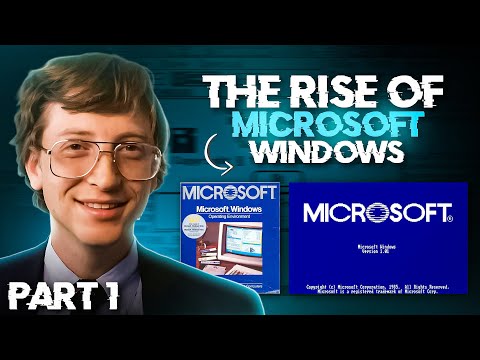
The journey began in 1985 when Microsoft released Windows 1.0, a graphical shell built on top of MS-DOS. It was rudimentary by modern standards, but it introduced the concept of overlapping windows, menus, and mouse-driven interaction. Windows 95 brought the iconic Start menu and taskbar. Windows XP unified the consumer and business lines with a polished interface and became one of the most beloved versions ever released. Windows 7 refined the experience further, while Windows 10 bridged the gap between desktop and touchscreen devices. The latest iteration, Windows 11, brings a redesigned Start menu, centered taskbar, and deeper integration with Microsoft 365 services.
Core Components of Microsoft Windows
Understanding the internal structure of Windows helps you troubleshoot problems, optimize performance, and make smarter decisions about software and hardware compatibility. Here are the key components that make the operating system function.
The Windows Kernel and System Architecture
The kernel is the heart of Windows. It handles memory allocation, process scheduling, and communication between hardware and software. Windows uses a hybrid kernel architecture, combining elements of monolithic and microkernel designs. This allows it to balance performance with stability, ensuring that a crash in one application does not necessarily bring down the entire system.
Desktop Environment and User Interface
The Windows desktop environment includes the taskbar, Start menu, notification center, and window management system. Windows 11 introduced Snap Layouts, Snap Groups, and rounded corners to create a more modern and organized workspace. The UI is built on the Windows Presentation Foundation (WPF) and Universal Windows Platform (UWP), enabling developers to create consistent experiences across devices.
How Windows Works Behind the Scenes
While users interact with the graphical interface, a complex orchestra of processes runs beneath the surface. Here is a closer look at what happens inside Windows when you perform everyday tasks.
- Boot Process: When you power on your PC, the firmware (UEFI or BIOS) initializes hardware and hands control to the Windows Boot Manager, which loads the operating system kernel.
- Session Initialization: The Windows Session Manager sets up user environments, starts essential services, and loads the graphical shell.
- Driver Management: Windows uses a driver model to communicate with printers, GPUs, network adapters, and other peripherals through a layered architecture.
- Memory and Process Management: The memory manager allocates virtual address spaces to each process, ensuring isolation and security.
- File System Operations: NTFS (New Technology File System) is the primary file system, offering journaling, encryption, and permissions management.
File Systems and Memory Management
Windows primarily uses the NTFS file system, which supports large volumes, file-level security, and data integrity features. ReFS (Resilient File System) is available in server editions for scenarios requiring maximum data protection. Virtual memory management uses a paging file on disk to supplement physical RAM, allowing Windows to run more applications simultaneously than the available memory would otherwise permit.
Major Windows Editions and Their Differences
Microsoft offers several editions tailored to different audiences. Choosing the right one depends on your needs, budget, and use case. Below is a comparison of the most prominent editions.
| Edition | Target Audience | Key Features |
| Windows 11 Home | Home users, gamers | Cortana, Xbox Game Bar, Microsoft Store |
| Windows 11 Pro | Professionals, small businesses | BitLocker, Remote Desktop, Group Policy |
| Windows 11 Enterprise | Large organizations | Advanced security, deployment tools, long-term servicing channels |
| Windows 11 Education | Students and schools | Feature-rich, often aligned with Enterprise |
| Windows 11 SE | K-12 education budget devices | Simplified experience, managed by IT admins |
Each edition inherits the same core operating system foundation but adds or restricts features through licensing. For most individual users, Windows 11 Home provides everything needed, while professionals often benefit from Pro features like BitLocker encryption and Hyper-V virtualization.
Windows Versions: Beginner to Advanced Insights
Whether you are just getting started or looking to deepen your technical knowledge, Windows offers tools and features at every level of expertise.
Beginner Essentials
- Learn to navigate the Start menu and taskbar efficiently.
- Understand how to install and uninstall programs from the Settings app.
- Use File Explorer to organize documents, photos, and downloads.
- Set up a Microsoft account to sync settings across devices.
- Enable Windows Update to keep your system secure and current.
Intermediate Skills
- Configure the Windows Firewall and review security logs using Event Viewer.
- Use Task Manager to monitor CPU, memory, disk, and network usage in real time.
- Create system restore points before making significant changes.
- Set up user accounts with different permission levels for shared computers.
- Explore PowerShell for basic automation and command-line tasks.

Advanced Techniques
- Deploy Windows using Windows Deployment Services (WDS) or Microsoft Endpoint Manager.
- Configure Group Policy Objects (GPOs) for enterprise-level control.
- Utilize Hyper-V to run virtual machines natively on Windows Pro and Enterprise.
- Implement Windows Sandbox for isolated testing environments.
- Customize the registry for advanced performance tuning and feature tweaks.
Expert Tips for Optimizing Your Windows Experience
Even if you have been using Windows for years, small adjustments can yield significant improvements in speed, security, and usability.
- Disable unnecessary startup programs. Open Task Manager, go to the Startup tab, and disable apps you do not need launching at boot.
- Enable Storage Sense. This built-in tool automatically clears temporary files and Recycle Bin contents on a schedule.
- Use dynamic locking. Windows 11 can lock your PC automatically when your paired Bluetooth phone moves out of range.
- Customize the taskbar. Pin your most-used applications and remove clutter to streamline your workflow.
- Keep drivers updated. Use Windows Update or manufacturer-specific tools to ensure hardware compatibility and security patches.
- Enable bit-level backups. Use File History or third-party tools to maintain regular backups of critical data.
Frequently Asked Questions
What is the latest version of Microsoft Windows? The current latest version is Windows 11, released in October 2021, with continuous feature updates delivered through Windows Update. It requires a TPM 2.0 chip, Secure Boot capability, and at least 4 GB of RAM for supported hardware.
Is Microsoft Windows free to use? Windows is not free. You must purchase a license to legally use it on a device. However, many PCs come with Windows pre-installed, and Microsoft offers a free trial period for some editions. Unlicensed usage violates Microsoft’s software licensing terms.
Can I run Windows on a Mac or Chromebook? Yes, through virtualization tools like VMware, Parallels, or Microsoft’s own Hyper-V on supported hardware. Apple Silicon Macs also support Windows 11 through the Windows 11 ARM Insider builds. Chromebooks generally cannot run native Windows, but some support Linux-based alternatives.
What file system does Windows use? Windows uses NTFS (New Technology File System) as its primary file system for internal drives. For removable storage, exFAT and FAT32 are common. Windows Server editions may use ReFS for additional resilience in critical storage scenarios.
How often does Microsoft release Windows updates? Microsoft follows a Semi-Annual Channel, releasing feature updates approximately every six months, typically in March and September. Quality updates, which include security patches and bug fixes, are released monthly on Patch Tuesday, the second Tuesday of each month.
What is the difference between Windows Home and Windows Pro? Windows Home is designed for everyday users and lacks advanced business features. Windows Pro includes BitLocker device encryption, Hyper-V virtualization, Group Policy management, Remote Desktop hosting, and the ability to join Azure Active Directory—making it better suited for power users and small businesses.
Conclusion
Microsoft Windows continues to evolve as one of the most sophisticated and widely deployed operating systems in computing history. Its blend of accessibility, powerful built-in tools, and deep software compatibility ensures it remains relevant for virtually every type of user. By understanding its architecture, editions, and optimization techniques, you can unlock the full potential of your Windows device. Whether you are taking your first steps into computing or fine-tuning a professional workstation, Windows provides the flexibility and ecosystem to support your goals. Stay informed, keep your system updated, and explore the features that match your workflow for the best possible experience.