When most people think about computing, they think about Microsoft Windows — the operating system that has powered billions of personal computers worldwide for nearly four decades. Whether you are a casual user managing documents, a creative professional editing multimedia, or an IT administrator overseeing enterprise networks, understanding how Windows works can dramatically improve your productivity and digital experience. In this comprehensive guide, we will explore everything you need to know about Windows as an operating system, from its core features and versions to expert tips, troubleshooting advice, and practical recommendations that help you get the absolute most out of your Windows-powered device.
What Is Microsoft Windows and Why Does It Still Matter?
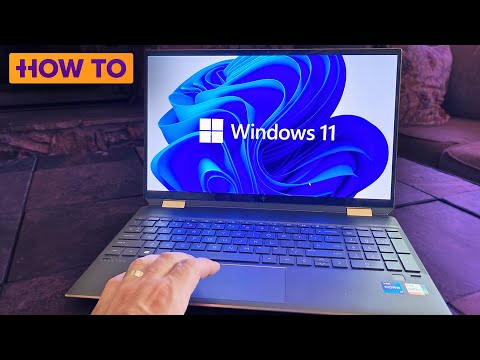
Microsoft Windows is a proprietary graphical operating system developed and distributed by Microsoft Corporation. First launched in 1985, Windows revolutionized personal computing by introducing a graphical user interface (GUI) that replaced the text-based command prompts of earlier systems. Today, Windows remains the most widely used desktop operating system globally, running on machines from budget laptops to high-end workstations. Its relevance continues because of deep software compatibility, enterprise integration, and constant innovation through updates and new releases.
Understanding how Windows operates — from its kernel architecture to its user-facing features — gives you the power to troubleshoot problems, optimize performance, and unlock capabilities you may not even know exist. This guide covers beginner essentials, intermediate techniques, and advanced insights that cater to users at every level.
Key Features of Modern Windows
Each new version of Windows introduces refinements and new capabilities. Here are the most important features that define the modern Windows experience:

1. The Start Menu and Taskbar
The Start Menu has evolved significantly over the years. In Windows 11, Microsoft returned the centered taskbar layout with pinned app icons and a recommended section that surfaces frequently used files and recent activities. The Taskbar also houses the system tray, notification area, and quick-action buttons for Wi-Fi, Bluetooth, volume, and power management.
2. Windows Snap Layouts and Multitasking
One of the most celebrated productivity features is Snap Layouts, introduced in Windows 11. By hovering over the maximize button, you can choose from several preset window arrangements, allowing you to tile multiple applications side by side effortlessly. Combined with Snap Groups, Windows remembers your workspace layouts so you can switch between different multitasking configurations instantly.
3. Microsoft Store and App Ecosystem
The Microsoft Store serves as a centralized hub for downloading apps, games, and tools. With recent updates, it now supports Progressive Web Apps (PWAs) and Android apps via the Amazon Appstore integration, dramatically expanding what you can install directly from Windows.
4. Windows Security and Defender
Built-in Windows Security (formerly Windows Defender) provides real-time antivirus protection, firewall management, account protection, and device performance monitoring. For most home users, this is more than sufficient without needing third-party security software.
5. DirectStorage and Gaming Support
DirectStorage is a GPU-driven storage API that allows games to load assets directly from NVMe SSDs to the graphics card, bypassing the CPU for dramatically faster load times. Combined with Auto HDR and Xbox Game Pass integration, Windows has become a premier gaming platform.
Windows Versions: A Comparison
Microsoft has released numerous versions of Windows over the years. Below is a comparison of the most significant editions that users encounter today:
| Version | Release Year | Key Highlights | Best For | |
| Windows 10 | 2015 | Start Menu revival, Cortana, Edge browser, Windows Hello, continuous feature updates | Compatibility with older software and hardware | |
| Windows 11 | 2021 | Redesigned UI, Snap Layouts, Android app support, DirectStorage, improved multitasking | Modern workflows, gaming, and new hardware | |
| Windows 11 SE | 2021 | Education-focused, simplified interface, managed by IT admins | Students and educational institutions | |
| Windows Server | Ongoing | Active Directory, Hyper-V, enterprise networking, security hardening | Businesses and server environments |
When choosing between Windows 10 vs Windows 11, the primary considerations are hardware compatibility, aesthetic preferences, and access to the latest features. Windows 11 requires TPM 2.0 and a compatible processor, while Windows 10 remains supported until October 2025.
How to Optimize Your Windows Experience
Getting the best performance and usability out of Windows involves a combination of system adjustments, software choices, and daily habits. Here are practical recommendations that make a real difference:
- Keep Windows Updated — Security patches, bug fixes, and feature improvements are delivered through Windows Update. Enabling automatic updates ensures your system stays protected and stable.
- Manage Startup Programs — Open Task Manager (Ctrl + Shift + Esc), navigate to the Startup tab, and disable unnecessary applications that launch at boot. This alone can shave significant time off your login process.
- Use Storage Sense — Found in Settings > System > Storage, Storage Sense automatically cleans temporary files, Recycle Bin contents, and older downloads, keeping your drive lean and responsive.
- Enable Night Light — Under Settings > System > Display, toggle Night Light to reduce blue light exposure in the evening hours, which helps protect your sleep cycle.
- Customize Power Plans — Navigate to Control Panel > Power Options to select Balanced, Power Saver, or High Performance modes depending on whether you prioritize battery life or raw processing speed.
Expert Tip: If you are running Windows on a laptop and frequently switch between work and personal use, consider creating separate user profiles. This isolates your files, browser data, and settings, improving both security and organization.
Common Windows Troubleshooting Tips
Even a well-maintained Windows system can encounter issues. Here are some of the most common problems and their solutions:
- Slow Performance: Check Resource Monitor for CPU, memory, and disk bottlenecks. Uninstall bloatware, disable visual effects (Settings > Performance > Adjust for best performance), and consider upgrading to an SSD if you are still using a mechanical hard drive.
- Wi-Fi Connectivity Issues: Run the Windows Network Troubleshooter, reset the network adapter through Settings > Network & Internet, or flush the DNS cache using
ipconfig /flushdnsin Command Prompt. - Blue Screen of Death (BSOD): Note the error code displayed, search Microsoft’s support database for the specific bug check code, and update or roll back recently installed drivers.
- Application Crashes: Run the built-in System File Checker (
sfc /scannow) and the DISM tool (DISM /Online /Cleanup-Image /RestoreHealth) to repair corrupted system files.
For advanced users, Windows Event Viewer is an invaluable diagnostic tool that logs system, security, and application events, allowing you to trace the root cause of recurring issues.
Windows for Work vs. Personal Use
The way you configure and use Windows can vary significantly depending on your context:
Personal Use
For home users, Windows shines in entertainment, casual productivity, and creative expression. Features like Xbox Game Pass, the Photos app, built-in video editor Clipchamp, and Cortana voice assistance make Windows a versatile platform for everyday life. Personal users should focus on keeping their system clean, enabling automatic updates, and using Family Safety features if children are sharing the device.
Professional and Enterprise Use
In a business environment, Windows Pro and Windows Enterprise editions offer critical capabilities such as BitLocker encryption, Group Policy management, Remote Desktop hosting, and Azure Active Directory integration. IT administrators rely on tools like Microsoft Endpoint Manager and Windows Autopilot to deploy, manage, and secure devices at scale across distributed workforces.
Frequently Asked Questions About Windows
What is the best way to upgrade from Windows 10 to Windows 11?
You can upgrade directly through Settings > Windows Update if your PC meets the hardware requirements (TPM 2.0, compatible CPU, at least 4 GB RAM). Alternatively, you can use the Media Creation Tool from Microsoft’s website to create a bootable USB drive and perform a clean install for a fresh start.
Is Windows Defender enough for security, or do I need third-party antivirus?
For the majority of users, Windows Defender provides robust, real-time protection that performs competitively with standalone antivirus solutions. However, power users or those who frequently download files from unverified sources may benefit from additional layers such as a dedicated VPN, a browser extension for phishing protection, or a premium third-party suite.
Can I run Android apps on Windows?
Yes, Windows 11 supports Android applications through the Amazon Appstore. You can install apps like Instagram, TikTok, and even mobile games directly from your Windows desktop. Note that this feature requires a Microsoft account and a supported device region.

How do I free up disk space on Windows?
Use Storage Settings to review and remove temporary files, empty the Recycle Bin, uninstall unused applications, and clear the Windows Update cache. You can also enable Storage Sense to automate this process on a weekly or monthly schedule.
What are the system requirements for Windows 11?
Windows 11 requires a 64-bit processor with 1 GHz or faster clock speed, at least 4 GB of RAM, 64 GB of storage, a DirectX 12 compatible GPU with WDDM 2.0 driver, and a display of at least 9 inches with HD resolution. The Trusted Platform Module (TPM) version 2.0 is also mandatory.
Final Thoughts on Getting the Most from Windows
Microsoft Windows continues to evolve, blending the familiarity that billions of users rely on with modern design principles and cutting-edge technology. Whether you are setting up a new PC, troubleshooting an existing one, or simply looking to improve your daily workflow, the tips and insights in this guide should serve as a valuable reference. The key to mastering Windows as a platform lies in staying curious, keeping your system updated, and exploring features that match your unique computing needs. With the right approach, Windows is not just an operating system — it is a powerful tool that can transform the way you work, create, and connect in the digital world.