


In today’s hyper-connected digital landscape, app download has become as routine as brushing your teeth — except it shapes nearly every aspect of your daily life. From banking and fitness tracking to entertainment and productivity, the applications you install on your smartphone, tablet, or desktop computer determine how efficiently you work, play, and communicate. But here’s something most users overlook: the process behind downloading and installing apps matters far more than people realize. A poorly chosen source, an outdated device, or a misunderstood permission setup can turn a simple mobile app installation into a frustrating experience — or worse, a security risk. This comprehensive guide walks you through everything you need to know about downloading apps safely, efficiently, and effectively across every major platform. Whether you’re a complete beginner or someone looking to refine your digital workflow, you’ll find actionable insights that go far beyond surface-level advice.
What Is an App Download and Why Does It Matter?
An app download refers to the process of transferring an application program from a remote server — typically an app store or marketplace — to your local device. Once downloaded, the software is installed, configured, and made ready for use. But the term encompasses much more than simply tapping a button. It involves understanding file formats, device compatibility, storage requirements, network conditions, and permission management. The quality of your download experience directly affects app performance, battery life, data usage, and personal data security. In 2024 alone, consumers downloaded over 250 billion applications globally, making app distribution one of the largest digital ecosystems on Earth. Understanding how this process works — and where things can go wrong — puts you ahead of the vast majority of casual users who never think beyond the “Install” button.
How to Download Apps on Different Devices
The method you use to download applications on your phone or computer depends entirely on your operating system. Each platform has its own ecosystem, store architecture, and security protocols. Below is a detailed breakdown for every major device category.
Downloading Apps on Android Devices
Android remains the world’s most popular mobile operating system, and downloading apps on Android devices is straightforward but offers more flexibility than other platforms. Here’s how the process typically works:
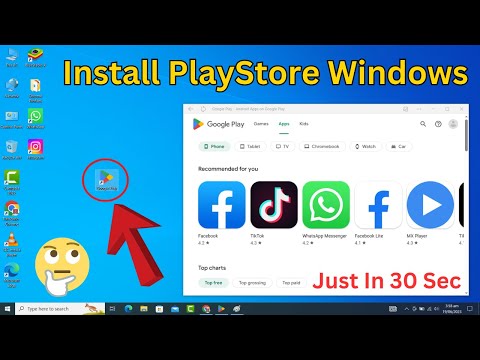
- Open the Google Play Store on your Android device.
- Use the search bar to find the application you want.
- Tap the Install button next to the app listing.
- Wait for the download to complete — the Play Store will display a progress bar.
- Once installed, tap Open or locate the app icon in your app drawer.

Android also supports sideloading, which means installing apps from sources outside the Google Play Store using APK files. While this offers incredible flexibility, it also increases your exposure to malware if you’re not careful. Always verify the source before sideloading any application.
Downloading Apps on iOS Devices
If you use an iPhone or iPad, your app download journey runs through Apple’s App Store. The process is tightly controlled and optimized for security:
- Tap the App Store icon on your home screen.
- Search for the app using the search field at the bottom.
- Tap Get (for free apps) or the price button (for paid apps).
- Authenticate using Face ID, Touch ID, or your Apple ID password.
- The app will download and install automatically, appearing on your home screen.
iOS users benefit from Apple’s strict app review process, which significantly reduces the risk of downloading malicious software. However, this also means fewer alternative sources for applications compared to Android.
Downloading Apps on Windows and Desktop Platforms
Desktop and laptop users have several options for downloading software applications:
- Microsoft Store: Built into Windows 10 and 11, offering a curated collection of UWP (Universal Windows Platform) and traditional desktop apps.
- Direct Downloads: Many developers provide executable (.exe or .dmg) files on their official websites for direct installation.
- Third-Party Stores: Platforms like Steam (gaming), Adobe Creative Cloud, and GitHub Desktop offer their own download ecosystems.
The key difference with desktop downloads is that you often manage file permissions, antivirus scanning, and installation directories manually — giving you more control but also more responsibility.
Top App Stores and Platforms Compared
Not all app download platforms are created equal. The table below compares the major app distribution channels across critical categories that matter to everyday users and developers alike.
| Platform | Primary OS | App Count (2024) | Security Model | Sideloading Supported |
| Google Play Store | Android | 3.5+ million | Play Protect scanning | Yes (with settings) |
| Apple App Store | iOS | 2.0+ million | Rigorous human + automated review | No (without workarounds) |
| Microsoft Store | Windows | 500,000+ | Microsoft SmartScreen | Limited |
| Samsung Galaxy Store | Android (Samsung) | 1.5+ million | Samsung Knox integration | Yes |
| Huawei AppGallery | Android (Global) | 500,000+ | Multi-layer security scan | Yes |
| Amazon Appstore | Android / Fire OS | 450,000+ | App Verification service | Yes |
As you can see, the ecosystem you choose affects not just how to download apps but also the variety of software available, the security level you receive, and whether you have the freedom to explore alternative sources.
Step-by-Step Guide to a Successful App Download
Follow this proven workflow every time you download a new application to maximize performance and minimize risk:
- Check device compatibility: Before tapping download, verify that your device meets the minimum operating system version and hardware requirements listed in the app store listing.
- Review storage space: Navigate to your device settings and confirm you have enough free storage. A download will fail silently or cause performance issues if your storage is nearly full.
- Connect to a stable network: Use Wi-Fi whenever possible. Mobile data downloads can be interrupted by coverage changes, and large apps consume significant data allowances.
- Verify the developer: Check the developer name, user reviews, and rating before installing. Reputable developers like Google LLC, Apple Inc., and Microsoft Corporation have verified profiles.
- Review permissions carefully: When prompted, evaluate whether the permissions requested make sense for the app’s function. A flashlight app shouldn’t need access to your contacts.
- Monitor post-install behavior: After downloading and launching the app, watch for unusual battery drain, excessive data usage, or unexpected pop-ups.
This checklist works universally whether you’re downloading a lightweight utility tool or a resource-heavy game. Bookmark it and use it every single time — it takes seconds and saves hours of troubleshooting.
Common App Download Issues and How to Fix Them
Even experienced users encounter problems when trying to download apps. Here are the most frequent issues and their practical solutions:
Insufficient Storage Space
This is the number one reason app downloads fail. Go to your device settings, check your available storage, and offload unused apps, clear cached data, or move photos and videos to cloud storage. On Android, you can use the built-in “Free Up Space” tool in Google Play Services.
Slow Download Speeds
If your download is crawling, try switching from mobile data to a stable Wi-Fi connection. Restarting your router, clearing the app store cache, or changing your DNS server to a faster provider (like Google DNS at 8.8.8.8) can dramatically improve download speeds.
App Not Compatible with Your Device
Some apps are geo-restricted or designed only for specific hardware. Check if the app is available in your region and whether your device model appears in the supported list. Using a VPN may sometimes help bypass regional restrictions, but this can violate the app’s terms of service.
Download Stuck or Failed
A stuck download often results from a temporary server glitch or network fluctuation. Clear the cache of your app store (Settings > Apps > Play Store/App Store > Clear Cache), restart your device, and try again. If the problem persists, try downloading the app at a different time of day.
Tips for Safe and Secure App Downloads
Security should never be an afterthought when you’re downloading applications. Follow these expert recommendations to protect yourself:
- Stick to official app stores: Google Play, Apple App Store, and Microsoft Store all employ automated and human review processes that catch the majority of malicious software before it reaches users.
- Read recent reviews carefully: An app with millions of downloads but recent complaints about malware, crashes, or aggressive ads is a red flag. Focus on reviews from the last 30 days.
- Keep your operating system updated: OS updates patch security vulnerabilities that malicious apps exploit. Outdated devices are significantly more vulnerable to compromised downloads.
- Use mobile security software: Apps like Norton Mobile Security, Bitdefender, or Google Play Protect add an extra layer of scanning before and after installation.
- Avoid “free premium” apps from unknown sources: If an app promises paid features for free without a legitimate developer behind it, assume the worst. These are among the most common vectors for data theft and spyware.
- Enable Google Play Protect or equivalent: Both Android and iOS have built-in security features that scan apps for harmful behavior. Make sure these are turned on and set to automatic scanning.
Conclusion
The app download process might seem mundane on the surface, but it sits at the intersection of convenience, security, and digital performance in ways that deserve your full attention. By understanding the platforms you use, following a disciplined download workflow, and staying vigilant about security, you transform a routine task into a strategic advantage. The difference between a careless tap and an informed download decision can mean the difference between a smooth digital experience and a compromised device. Take the time to apply the tips and steps outlined in this guide, and you’ll notice immediate improvements in app quality, device performance, and personal data safety. The digital world rewards those who download with intention.
Frequently Asked Questions
What is the fastest way to download apps on an Android phone?
The fastest method is to connect to a strong Wi-Fi network, clear your Google Play Store cache before downloading, and ensure your device has at least 20% free storage space. Using a 5 GHz Wi-Fi band instead of 2.4 GHz also significantly reduces download times for larger applications.
Can you download apps on a phone without an app store?
Yes, it is possible through sideloading on Android by installing APK files directly from a developer’s website or trusted third-party source. On iOS, sideloading is more restricted but can be done through enterprise certificates or developer mode in newer iOS versions. Always verify the authenticity of any file you install outside official stores.
Why do some apps fail to download even with enough storage?
Common reasons include an outdated operating system that doesn’t meet the app’s minimum requirements, a corrupted app store cache, network connectivity issues, or geo-restrictions placed by the developer. Restarting your device, updating your OS, and clearing the app store cache typically resolve these issues.
Most free apps in official stores are safe and legitimate, though they may contain ads or offer in-app purchases. The hidden cost often comes in the form of data collection, so always review the privacy policy and permissions requested. Apps that ask for unnecessary permissions — such as a calculator requesting microphone access — should raise suspicion regardless of whether they are free or paid.
How can I recover a previously downloaded app without paying again?
On both Android and iOS, your purchase history is tied to your account. Simply log into your Google Play or Apple ID, navigate to “Manage Apps” or “Purchased,” and reinstall the application at no additional cost. This works across device replacements and even after resetting your phone to factory settings.